How to View Your Profile As Others See It? 5+ LinkedIn Secret Tips
To check how your profile appears to the public, navigate to your LinkedIn profile and click on "Edit public profile & URL" in the top right corner. This opens a new tab showing your public-facing page. From here, you can manage your LinkedIn profile visibility settings, toggle specific sections on or off, and customize your LinkedIn public profile URL to ensure recruiters and peers see your best professional self.
Introduction
Have you ever wondered if your LinkedIn profile looks as sharp to a recruiter as it does to you? We spend hours tweaking our headlines and uploading the perfect photo, but we often forget to check the "final product" from an outsider’s perspective. It’s like getting dressed for a massive gala without ever looking in a full-length mirror. You might have a stray thread or a crooked tie that you simply can't see from your own vantage point.
In the fast-paced world of digital networking, your first impression happens before you ever say "hello." When you are a business owner looking for leads or a professional aiming for a promotion, understanding how to view a LinkedIn profile as others see it is a game-changer. It helps you catch errors, hide private details you didn't mean to share, and ensure your branding is consistent.
I’ve helped thousands of professionals optimize their digital presence, and I’ve seen how one tiny setting can be the difference between a new contract and a missed opportunity. Let’s walk through how to audit your profile and then dive into some "secret sauce" tips to make sure you stand out in every LinkedIn search.
The Step-by-Step: How LinkedIn View a Public Profile
Getting a true look at your profile isn't as simple as just clicking your name. LinkedIn shows you the "editing" view by default. To see what a stranger or a non-connection sees, you have to use a specific tool built into the platform.
1. Find the Magic Button
First, log in and click on the "Me" icon at the top of your homepage. Select "View Profile." Once you’re on your own page, look at the right-hand rail. You’ll see a section titled edit public profile and URL LinkedIn. Click that.
2. The Preview Window
A new tab will open. This is your "Public Profile" management page. On the right side, you will see a preview of your profile. This is exactly what someone who isn't logged into LinkedIn sees when they find you via Google or a direct link.
3. Adjust Your Visibility Settings
On this same page, you can control your LinkedIn profile visibility settings. You’ll see a list of toggles for your photo, headline, websites, and experience. If you turn one of these off, it disappears from the public view. I recommend keeping as much as possible "Public" if you want to grow your brand, but you might want to hide specific older roles if they don't fit your current career path.
Why Finding Your LinkedIn Public Profile URL Matters
Your URL is your digital business card. By default, LinkedIn gives you a messy URL with a bunch of random numbers at the end. That looks amateur. Part of finding your LinkedIn public profile URL is making sure it is "clean."
On that same "Edit public profile" page, you can see your current link in the top right corner. Click the pencil icon to change it. Aim for something like linkedin.com/in/yourname. This makes it easier to share on resumes or in your email signature. It also helps with SEO, making it more likely that your profile shows up when someone types your name into a search engine.
Understanding LinkedIn Search and Privacy
Sometimes, you don't just want to see how the "public" sees you; you want to know how other LinkedIn members see you. This is a bit trickier because LinkedIn personalizes what people see based on their connection level (1st, 2nd, or 3rd degree).
If you want to be totally sure about how you appear in a LinkedIn search, ask a friend or a colleague who isn't a "1st-degree connection" to pull up your profile. They can tell you if your "About" section is cut off or if your recent LinkedIn updates are showing up correctly. If things look off, you might need to head into your main settings (Settings & Privacy > Visibility) to adjust how much data LinkedIn shares with the broader network.
5 Secret Tips to Make Your Profile Irresistible
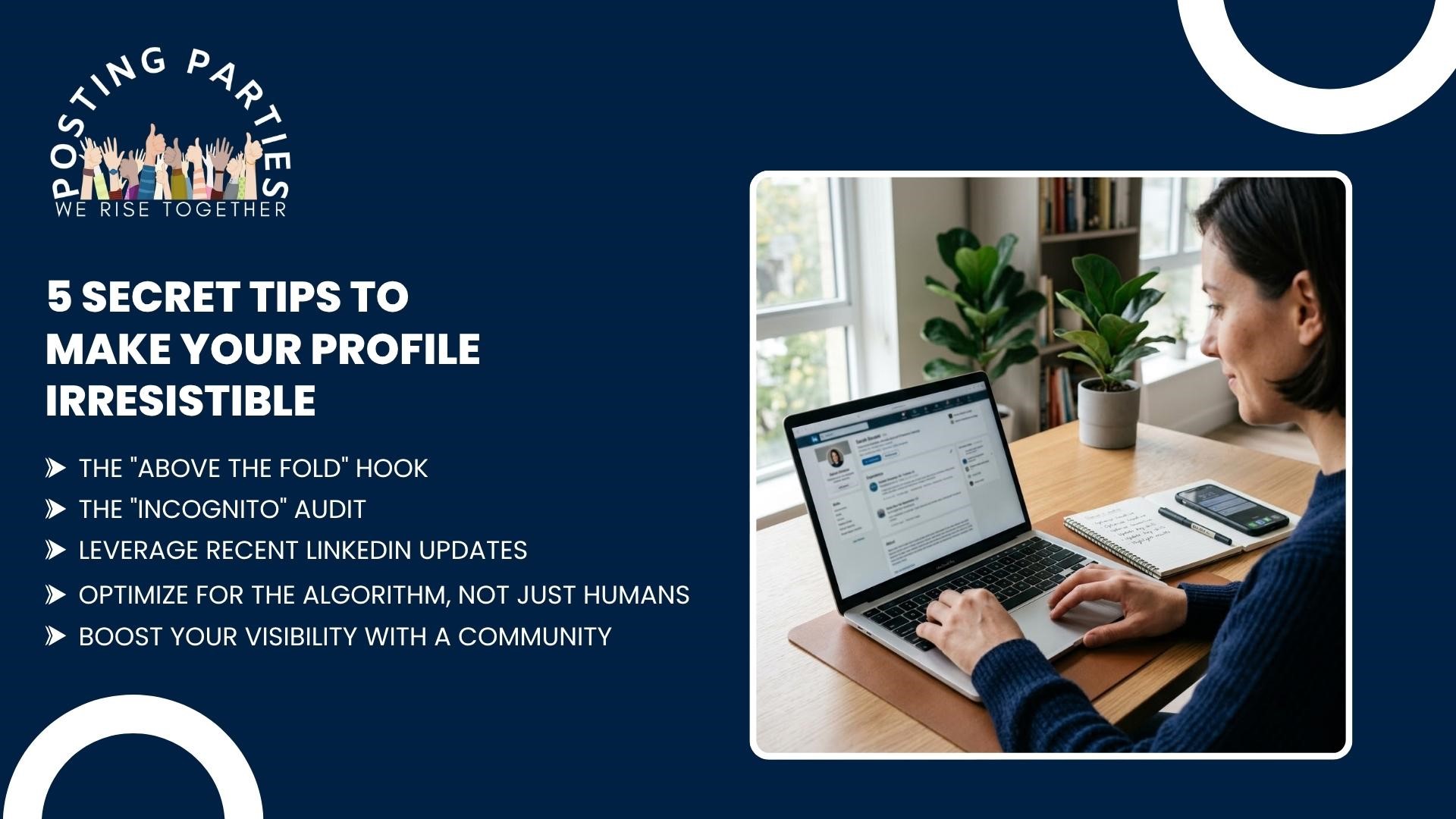
Once you’ve mastered the "view as" feature, it’s time to level up. Having a visible profile is good, but having a magnetic one is better. Here are five expert tips I’ve gathered over two decades of digital marketing.
1. The "Above the Fold" Hook
In web design, "above the fold" refers to what people see before they start scrolling. On LinkedIn, this is your banner, your photo, and your headline.
The Banner: Don't leave it as the default gray pattern. Use a high-quality image that represents your industry or your "why."
The Headline: Don't just list your job title. Use keywords. Instead of "Marketing Manager," try "Marketing Manager | Helping SaaS Companies Scale with Content & SEO."
2. The "Incognito" Audit
Every few months, open an "Incognito" or "Private" browser window and search for your name. This is the ultimate way to view LinkedIn profile as others see it. Sometimes, cached data in your regular browser can give you a false sense of security. Seeing your profile as a complete stranger does helps you realize if your contact info is too hard to find or if your profile picture is blurry on mobile devices.
3. Leverage Recent LinkedIn Updates
LinkedIn is constantly changing. Recently, they’ve placed a huge emphasis on the "Featured" section. This is your portfolio. If you have a great blog post, a video testimonial, or a PDF of a successful project, pin it there. This section is one of the first things people see when they look at your profile, and it provides immediate "social proof" of your skills.
4. Optimize for the Algorithm, Not Just Humans
While we want to look good to people, we also need to look good to the machine. Use your primary keywords (like your job title and core skills) at least 3-4 times throughout your "About" and "Experience" sections. This ensures that when someone uses the LinkedIn search tool for a specific skill, your name is at the top of the list. If you're ever stuck, you can always check LinkedIn support for the latest documentation on how search indexing works.
5. Boost Your Visibility with a Community
You can have the best profile in the world, but if nobody sees it, it doesn't matter. This is the "secret sauce" most experts don't tell you: the LinkedIn algorithm loves engagement. When you post an update, and people comment on it immediately, LinkedIn shows that post to more people.
This is why I always recommend joining an engagement group. It’s not about "fake" likes; it's about getting your content in front of real, qualified humans who can help boost your organic reach. A great way to start is by checking out the community at Posting Parties. They offer a space where entrepreneurs and professionals support each other's growth, ensuring that your perfectly polished profile actually gets the eyeballs it deserves.
Troubleshooting Common Visibility Issues
Sometimes, you might follow all the steps to view LinkedIn public profile settings and find that your changes aren't showing up. Don't panic! Here are a few reasons why that happens:
If you find that your profile still isn't appearing in Google searches, it might be because you recently created it. It takes time for search engines to "crawl" and index your page. Be patient and keep sharing your LinkedIn public profile on other platforms to speed up the process.
Putting It All Together
Checking how others see your profile isn't just a one-time task; it’s a maintenance habit. I suggest doing a quick audit every time you change jobs, finish a major project, or update your professional headshot.
Your LinkedIn profile is a living document. It’s your global billboard. By mastering your LinkedIn profile visibility settings and using the "view as" tools, you take control of your professional narrative. You stop guessing and start knowing that you are putting your best foot forward.
Remember, visibility is the first step toward opportunity. Once you’ve polished your profile to perfection, don't let it sit in a vacuum. Connect with others, share your expertise, and join a community that helps you amplify your voice. If you're ready to take your LinkedIn presence from "visible" to "unstoppable," come see what we’re building at Posting Parties. We’d love to help you reach the audience you deserve.
Frequently Asked Questions (FAQ)
How do I post on LinkedIn?
To create a post, click the "Start a post" box at the top of your home feed. You can type text, add images, or upload videos. For professional documents or "carousels," click the three dots (...) or the "Document" icon to upload a PDF. Once your content is ready, hit the "Post" button to share it with your network.
How to post a resume on LinkedIn?
There are two main ways to share your resume:
On your Profile: Go to your profile, click "Add profile section," select "Recommended," and then "Add featured." Click the "+" icon and select "Add media" to upload your resume PDF.
As a Feed Post: Click "Start a post" on your homepage, select the "Document" icon, and upload your resume. Add a caption explaining what kind of opportunities you are seeking and use hashtags like #OpenToWork.
How to see scheduled posts on LinkedIn?
Desktop: Click the "Start a post" box on your homepage, then click the clock icon in the bottom-right corner. A "View all scheduled posts" link will appear, taking you to your queue.
Mobile App: Tap the "+" (Post) button at the bottom of the screen. Look for the clock icon at the top-right (near the Post button). Tap it to see and manage your upcoming content.
When is the best time to post on LinkedIn?
According to 2026 engagement data, the "Golden Window" for maximum visibility is Tuesday, Wednesday, and Thursday between 10:00 AM and 12:00 PM (local time of your target audience).
Peak Day: Tuesday is consistently the highest-performing day.
Mid-Week: Wednesdays and Thursdays see the most comments and "dwell time."
Avoid: Weekends generally see a significant drop in professional traffic, though Sunday evenings can work well for personal "thought leadership" stories.
